
Random String Generator
Table of Contents
- Generate random strings online — Random String Generator
- How to use
- Behavior & limits
- Examples
- Combining tools & typical workflows
- Tips & edge cases
- FAQ
- How many strings can I generate in one run?
- Will the tool ensure every generated string is unique?
- How do I get results out of the tool?
- Can I control length and character types?
- Is this suitable for generating secure passwords or keys?
- Related tools
Test Fixtures Generator: A Developer's Must-Have Tool
Generate random strings online — Random String Generator
Generate random strings online for testing, fixtures, placeholders, or creative use. Choose quantity (up to 2000), set min/max length, and pick character types (letters, numbers, special characters, spaces). Results appear in the editor and can be copied to the clipboard for immediate use.
How to use
- Open the menu and choose Generate → Strings.
- Use the toolbar to set quantity (max 2000), minimum and maximum length, and which character sets to include.
- Click the Generate button. Generated strings appear in the editor; use Copy to clipboard to export them.
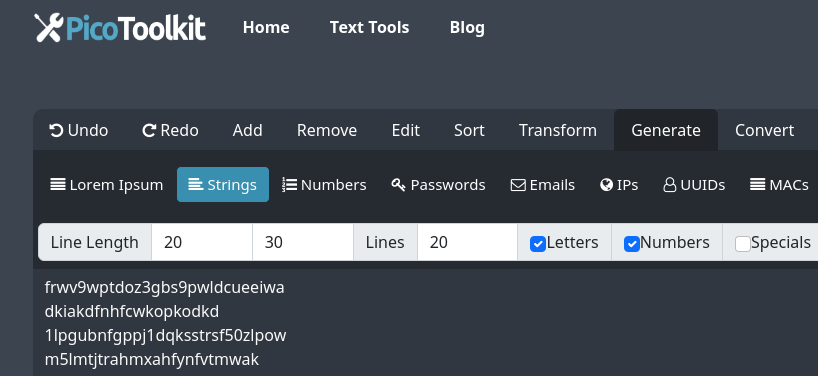
Behavior & limits
- Maximum items per run: 2000 strings.
- Uniqueness is not enforced — duplicate strings may appear. To remove duplicates, run Remove → Duplicates after generation.
- Character repetition is allowed (random generation does not prevent repeated characters inside a string).
- There is no built-in download button; copy results to clipboard from the editor for pasting or saving elsewhere.
Examples
Settings → sample generated lines (examples shown as possible outputs):
Example A — 10 strings, length 8–8, letters + numbers
a8K2uP0x
Q4n2vB7s
m9Z1fT6k
R2d8L3wH
b6G0xS1q
Example B — 5 strings, length 32–40, letters + numbers + special
x8$Gm1A#p9Kq7Lz2Vb!s3Nc6T1dFn0
Pq3&zR9^m0Lw7@cD8s2hV4bGk1Fz6
Example C — 6 strings, length 12–16, letters + spaces (for placeholders)
abc def ghi j
qwe rty uio p
sample text x1
Combining tools & typical workflows
- Create fixture datasets: generate strings → combine with Email Generator or Names Generator.
- Enforce uniqueness: generate → Remove → Duplicates.
- Prepare CSV or structured output: generate → copy to clipboard → paste into your spreadsheet or use converters (CSV/JSON) for import.
- Produce secure passwords or keys: use Password Generator (recommended for security-focused needs).
Tips & edge cases
- Generating near the 2000 limit can create duplicates more often when the character space is small (short length, few character sets).
- For predictable, unique identifiers, consider combining generated strings with incremental counters or timestamps.
- If you need many unique values, generate more and then run Remove → Duplicates or use other tooling to validate uniqueness.
FAQ
How many strings can I generate in one run?
You can generate up to 2000 strings in a single batch.
Will the tool ensure every generated string is unique?
No. Uniqueness is not enforced. To remove duplicates after generation, use Remove → Duplicates.
How do I get results out of the tool?
Generated strings appear in the editor. Use the editor’s Copy to clipboard action to copy results and paste them into your destination.
Can I control length and character types?
Yes. The toolbar lets you set minimum and maximum length and toggle letters, numbers, special characters, and spaces.
Is this suitable for generating secure passwords or keys?
For general testing and fixtures this is fine. For production-grade secrets use the dedicated Password Generator or a dedicated secure key management process.
Related tools
- Email Generator - Create realistic email addresses for testing or demos.
- Lorem Ipsum - Generate placeholder text for design and layout purposes.
- Password Generator - Produce strong, random passwords for security.
- IP Generator - Simulate a range of IP addresses for network testing.
- Dates Generator - Generate list of dates in specifinc format.
- Names Generator - Create realistic names for a variety of uses.