
Trim Online
Table of Contents
- Trim text online — remove leading & trailing characters
- How to use
- Common use cases
- Behavior & supported characters
- Examples (before → after)
- Tips & edge cases
- Related tools
- FAQ
- What exactly does Trim remove?
- Does Trim remove whitespace inside the lines?
- Can I trim multiple characters or a string like "asd"?
- Does Trim handle Unicode non‑breaking spaces and other Unicode whitespace?
- Should I use Trim or Remove Spaces?
- Are there limits on input size?
Online tool for remove unnecesarry characters
Trim text online — remove leading & trailing characters
Trim unwanted characters or whitespace from the start, end, or both sides of each line. Paste your text, choose the character(s) and side (left/right/both), then run the trim tool — quick cleanup for strings, lists and bulk text.
How to use
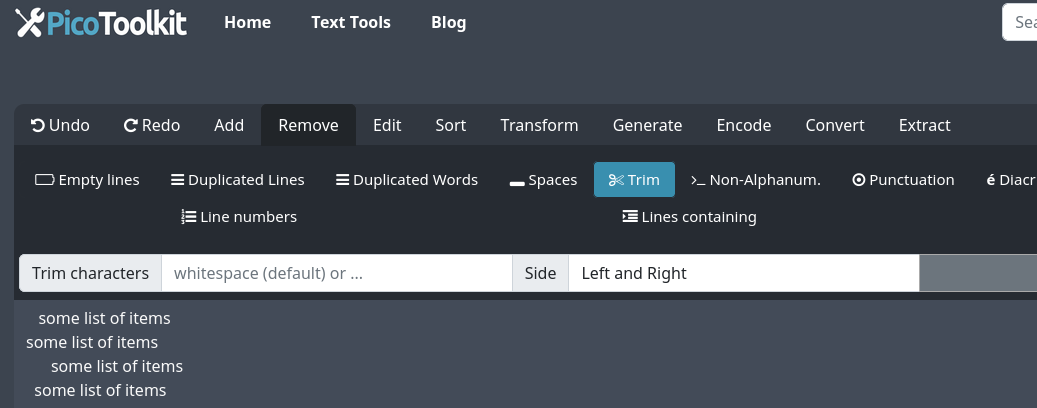
- Paste your text into the input area.
- Open Remove → Trim and enter the character(s) to remove (single character or string like "asd").
- Choose Left, Right or Both and click Trim. Copy the result or use Undo to revert.
Common use cases
- Remove leading/trailing spaces, commas or quotes from CSV or copied lists.
- Clean up user input, log lines, or imported data before analysis or import.
- Prepare content for publishing by stripping repeated markers (e.g., "***", ">>>").
- Trim fixed tokens or prefixes/suffixes (for example remove "asd" from both ends of lines).
Behavior & supported characters
- Trim operates line-by-line: it removes characters only at the start or end of each line, not inside the line.
- Whitespace trimming follows JavaScript’s internal definition and removes all leading/trailing Unicode whitespace, including:
- regular spaces ( )
- tabs (\t)
- newlines (\n, \r) at the ends of lines
- non‑breaking space (U+00A0) and other Unicode space separators
- When you specify characters (e.g., comma, asterisk, "asd"), the tool removes those exact characters/strings from the chosen side(s).
- For regex or complex patterns use Find and Replace.
Examples (before → after)
Trim spaces (both sides)
Before:
  some text
After:
some text
Trim specific character (comma, right side)
Before:
apple,banana,orange,
After:
apple,banana,orange
Trim custom string "asd" (both sides)
Before:
asdHello Worldasdasd
After:
Hello World
Tips & edge cases
- If input contains HTML, strip tags first with Remove HTML before trimming.
- After trimming you may want to remove empty lines with Remove Empty Lines.
- To remove internal whitespace (inside lines) use Remove Spaces or Find and Replace.
- Use Remove Non-Alphanumeric Characters or Find & Replace when you need to target Unicode invisible characters beyond standard whitespace.
- No fixed server-side input limit — practical limits depend on your browser’s memory and CPU.
- Be cautious trimming code/JSON: removing characters can alter structure. Back up input if needed.
Related tools
- Remove Punctuation — strip punctuation marks.
- Remove Diacritics — remove accents from letters.
- Remove HTML — remove HTML tags before cleaning text.
- Remove Empty Lines — delete blank or whitespace-only lines.
- Remove Duplicated Lines — remove duplicate lines after trimming.
- Remove Spaces — collapse or delete internal whitespace.
- Find and Replace — regex-based or targeted trimming and replacements.
- Minify Text — aggressive compression after trimming and cleaning.
FAQ
What exactly does Trim remove?
Trim removes the specified characters from the start, end, or both sides of each line. For whitespace, it uses JavaScript’s whitespace definition and removes leading/trailing Unicode whitespace (spaces, tabs, newlines, non‑breaking spaces and other Unicode separators).
Does Trim remove whitespace inside the lines?
No. Trim only removes characters at the start or end of each line. To remove or collapse internal spaces use Remove Spaces or Find and Replace with a pattern.
Can I trim multiple characters or a string like "asd"?
Yes. Specify the character(s) or string you want removed. The tool removes those exact characters/strings from the chosen side(s) of each line.
Does Trim handle Unicode non‑breaking spaces and other Unicode whitespace?
Yes. The tool trims all leading and trailing Unicode whitespace according to JavaScript’s definition, including U+00A0 non‑breaking space and other Unicode space separators.
Should I use Trim or Remove Spaces?
Use Trim when you only need to remove leading/trailing characters. Use Remove Spaces to collapse or delete internal whitespace, or Find & Replace for regex-based transformations.
Are there limits on input size?
No fixed limits are enforced by the tool itself. Practical limits depend on your browser and device — very large inputs may be slow or memory‑intensive.